
Help center › Help for signers
Confirm with a code sent by text message
A sender can ask you to confirm your signature with a 6-digit code we text to your phone. We send a code only when you ask for one.
Coming soon. This article describes a feature that is not available yet. Steps and button names may change.
Some senders ask for an extra check: a code sent by text message to your mobile phone, on top of confirming your email address. It is available for US and Canadian mobile numbers.
How it works
- Open the document from the invitation email and confirm your email address as usual.
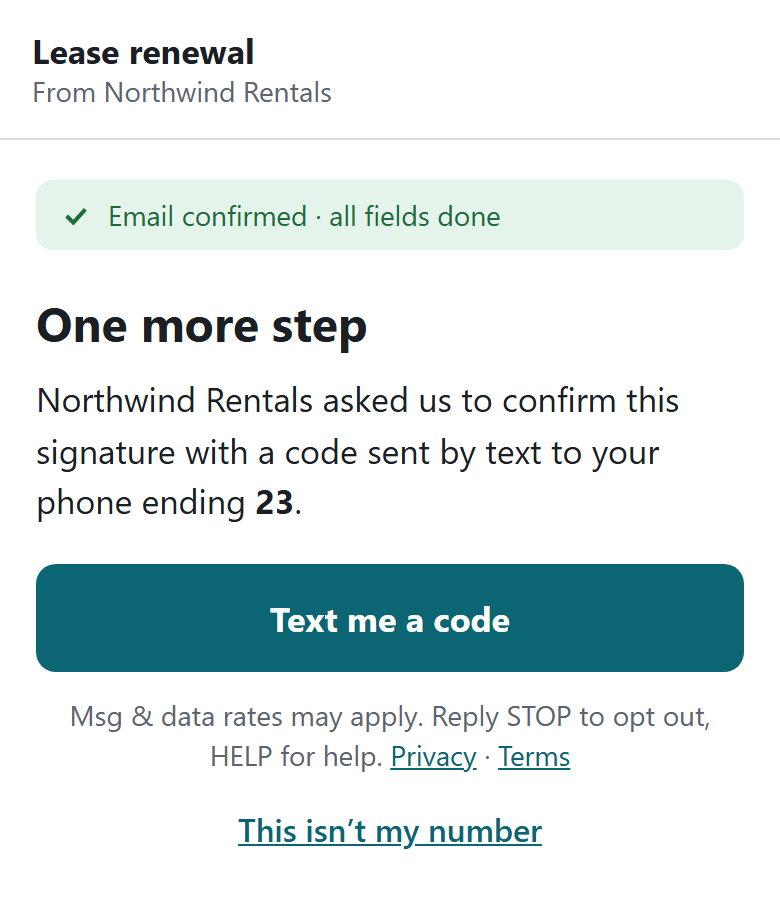
- After you finish filling in the fields, the page tells you the sender asked for a code sent by text message. It shows the last two digits of the mobile number the sender entered.
- Select Text me a code. We send nothing before you ask.
- Type the 6-digit code from the text message. Your phone may offer it above the keyboard. Your signature is made as soon as the code is right.
What we text you
- Code messages contain only a one-time code for the document you are signing. They contain no links. We do not send marketing texts.
- You can get up to 3 code messages for one document. A code works for 10 minutes. You can ask for a new code after 30 seconds.
- Message and data rates of your phone plan may apply.
- Never give the code to anyone. Sovrasign staff and support never ask for it.
We use your mobile number only to send the code. We do not use it for marketing and do not share or sell mobile numbers or opt-in data to anyone for their marketing (our privacy policy, section 4.10).
STOP and HELP
- Reply STOP to stop our texts to your phone. To get codes again, reply START.
- Reply HELP for a short message with a link to this page.
It is not your number
Only the sender can change the number. Select This isn't my number on the signing page: we tell the sender, and you get a new email when they have fixed it. Your answers are saved.
The code does not arrive
- Check that your phone has signal and can receive texts.
- If you once replied STOP to Sovrasign, reply START first.
- Select Try again. A text that was not delivered does not count toward the 3.
Questions about the document itself? Contact the sender: their name and email address are in the invitation and at the top of the signing page. Sovrasign cannot change the document or give legal advice.